Write a Brief Like a Music Producer
Tell the model what you would tell a producer. Name the genre, BPM, key, instruments, voice, song parts, and timing.

Want to hear the sound first? Play the samples to check the vocals, genres, and song structure. Then make a track of your own.
You do not need a melody, studio, or DAW. A clear idea is enough to start.
Describe the song you have in mind. If you already wrote the words, add them with labels such as [Verse] and [Chorus].
Add the genre, mood, BPM, instruments, and vocal style. You can also ask for an intro, bridge, or quiet ending.
Set a length from 5 seconds to 5 minutes. Pick one of 6 MP3 or WAV options, then generate and listen.
Start with what you already have: a rough idea, finished lyrics, or a scene that needs music. The model fills in the rest.
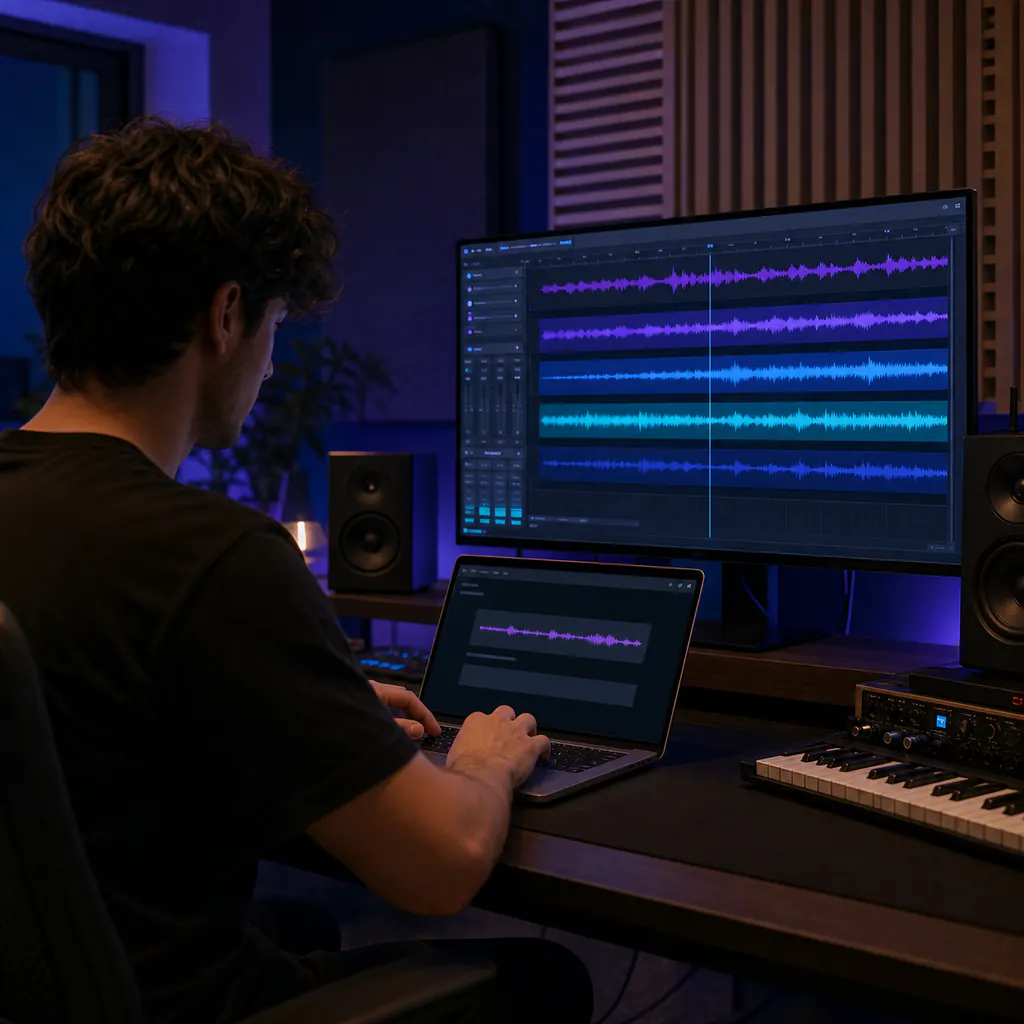
You may only have a mood, scene, or line in your head. Describe it, and the model can build the parts, sound, vocals, and mix.
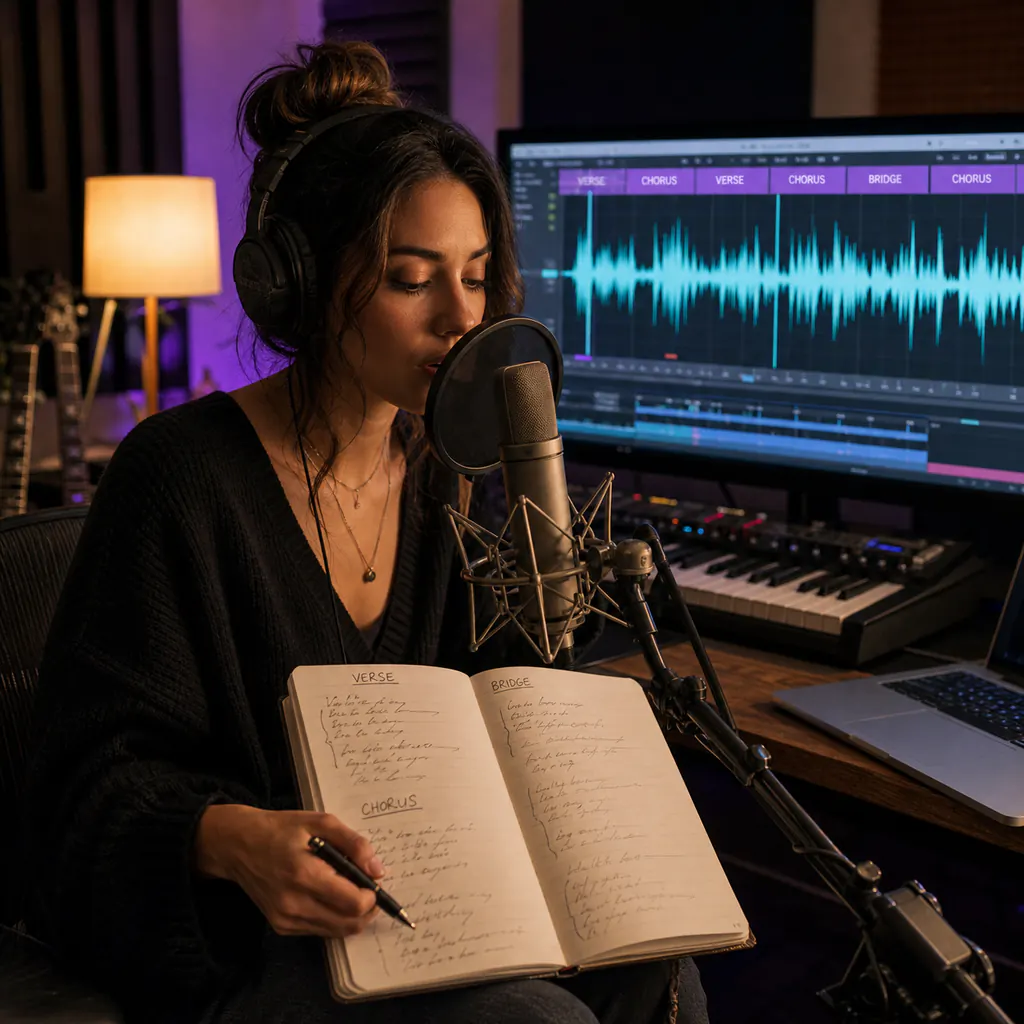
Lyrics can feel flat without a tune or voice. Add [Verse], [Chorus], and [Bridge]. Then say how you want the singer and band to sound.
Need music that stays out of the way? Turn on Instrumental, then set the pace, mood, instruments, and ending.
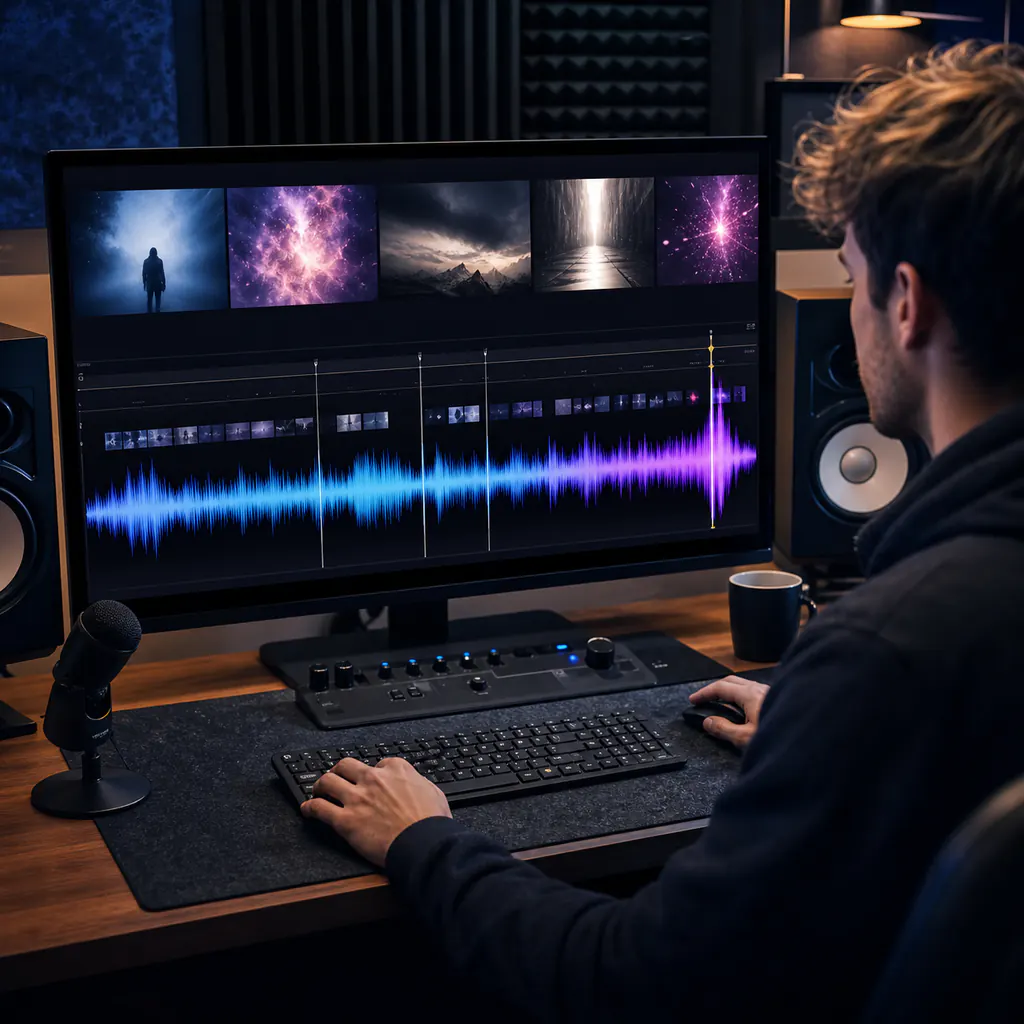
Stock music may not match a key cut or change in mood. Share the scene, timing, and energy you need so the track fits your edit.
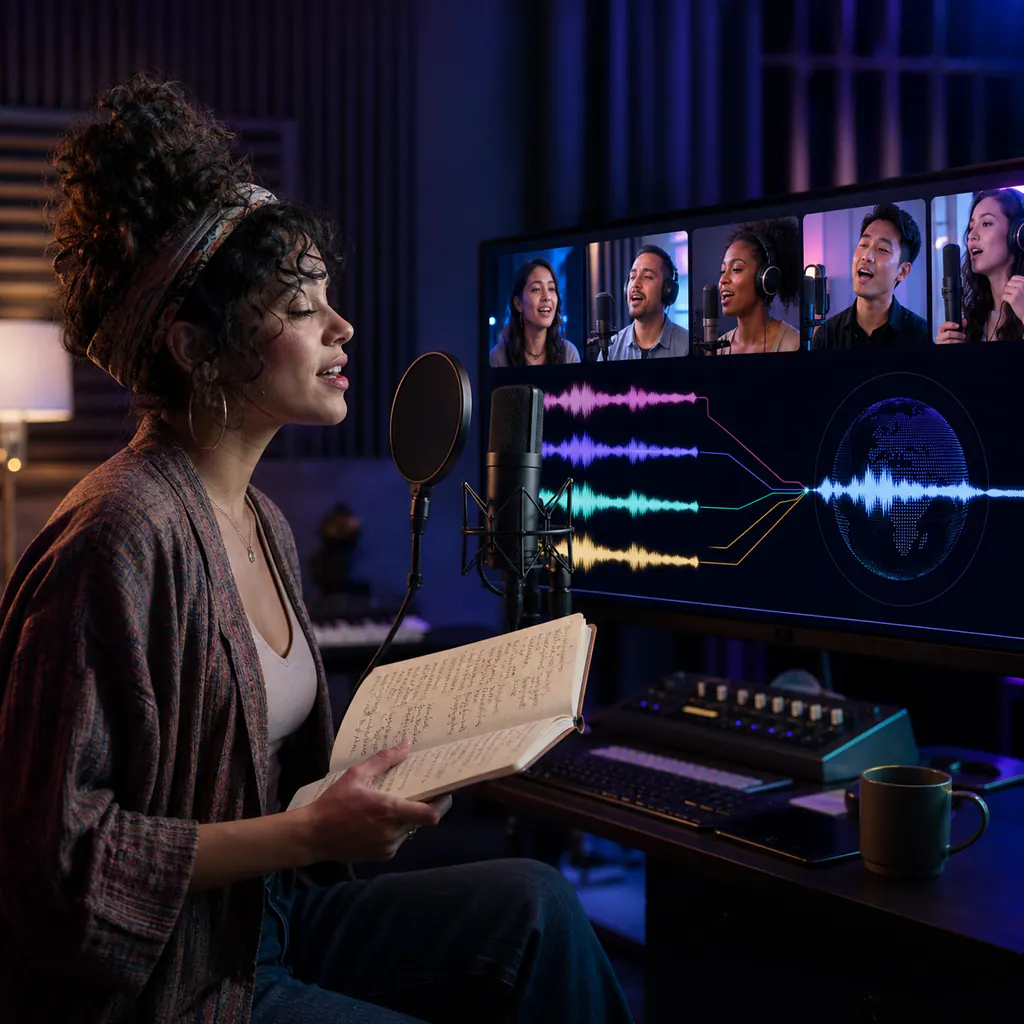
Want the song in German, Spanish, or another language? Add your lyrics, then name the language, voice, and style in the prompt.
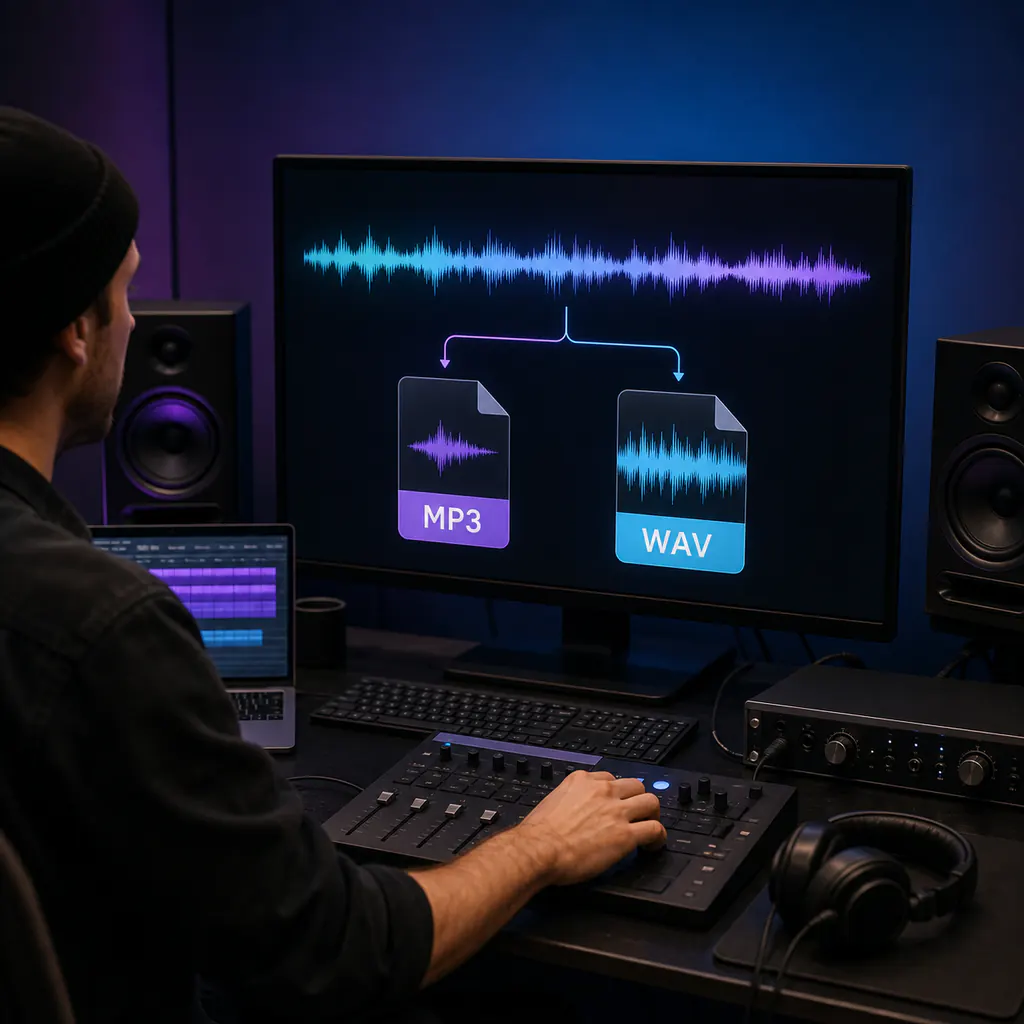
Need a small file for a quick share? Choose MP3. If you plan to edit or mix the track, choose WAV up to 44.1 kHz.
A genre alone rarely gets the sound right. Add the pace, instruments, voice, parts, and finish you want.
Tell the model what you would tell a producer. Name the genre, BPM, key, instruments, voice, song parts, and timing.
Match the length to the job. Make a short cue, a 30-second clip, or a full track up to 5 minutes.
Add words you wrote or ask the model to write from your brief. Say how the voice should sound in each part.
Not every track needs a voice. Use Instrumental for beats, background music, film cues, or a full song with no vocals.
Pick 128 or 192 kbps MP3 for a smaller file. Choose 16, 22, 24, or 44.1 kHz WAV when you need raw audio for an edit.
Use Simple mode for one text prompt. Open Advanced mode when you want separate fields for the title, style, and lyrics.
Ask for an intro, verses, a chorus, a bridge, breaks, and an outro. Write the parts in the order you want to hear them.
Try pop, rock, EDM, folk, ambient, or your own mix. Add the sounds and traits that make the genre feel right to you.
Find quick answers about prompts, lyrics, vocals, length, files, credits, and rights.
It is a text-to-music model for full songs and instrumentals. You describe what you want, and it makes a new track with the style, parts, and vocals you asked for.
Write your brief in the form on this page. BeMusic AI sends it to the model and adds the finished file to your workspace.
No. BeMusic AI is an independent music platform where you can use supported AI models in one place.
Start with a prompt or your own lyrics. Add the sound, voice, song parts, and length you want, then choose MP3 or WAV.
Yes—you can shape a full track with an intro, verses, a chorus, a bridge, breaks, and an outro. A short cue or loop also works.
You can. Add lyrics you have the right to use. Labels such as [Verse], [Chorus], and [Bridge] help show how the song should flow.
Turn on Instrumental to remove singing and spoken words. You can still set the instruments, mood, pace, and song parts.
Put the genre, mood, BPM, instruments, and type of voice in your prompt. In Advanced mode, add those notes to Style and put your lyrics in their own field.
You can choose from 5 seconds to 5 minutes. A longer track uses more credits, and you will see the cost on the button before you start.
You can add a prompt or your own lyrics. You can also turn vocals off, choose the length, and pick MP3 or WAV. This page starts with the ElevenLabs model selected.
The form starts at 10 seconds and 128 kbps MP3. Vocals are on by default. Turn on Instrumental when you do not want a voice.
Choose 5, 10, or 30 seconds, or 1, 2, 3, or 5 minutes. The credit total changes before you generate.
Choose 128 or 192 kbps MP3, or WAV at 16, 22, 24, or 44.1 kHz. The 44.1 kHz choice is raw CD-quality audio.
Choose MP3 for a small file that is easy to share. Pick WAV when you want to edit, mix, or save the raw audio.
Avoid names of artists, bands, and known songs. Describe the era, mood, instruments, and sound instead, and only add lyrics you have the right to use.
Your usage rights depend on your BeMusic AI plan and license. Check the commercial license before you use a track for paid work.
Each second costs 3 BeMusic AI credits. That means 10 seconds costs 30 credits, 1 minute costs 180, and 5 minutes costs 900.
Name the genre, mood, BPM, key, instruments, voice, song parts, and intended use. Focus on the sound you want, not a known artist or song.
It works right here. Add your idea or lyrics, choose the settings, and start when the brief sounds right to you. Your track will appear in your workspace.
Discover other powerful features to enhance your music creation
Start with one clear idea. Describe the sound, lyrics, or scene you have in mind, then make a track you can hear and refine.