
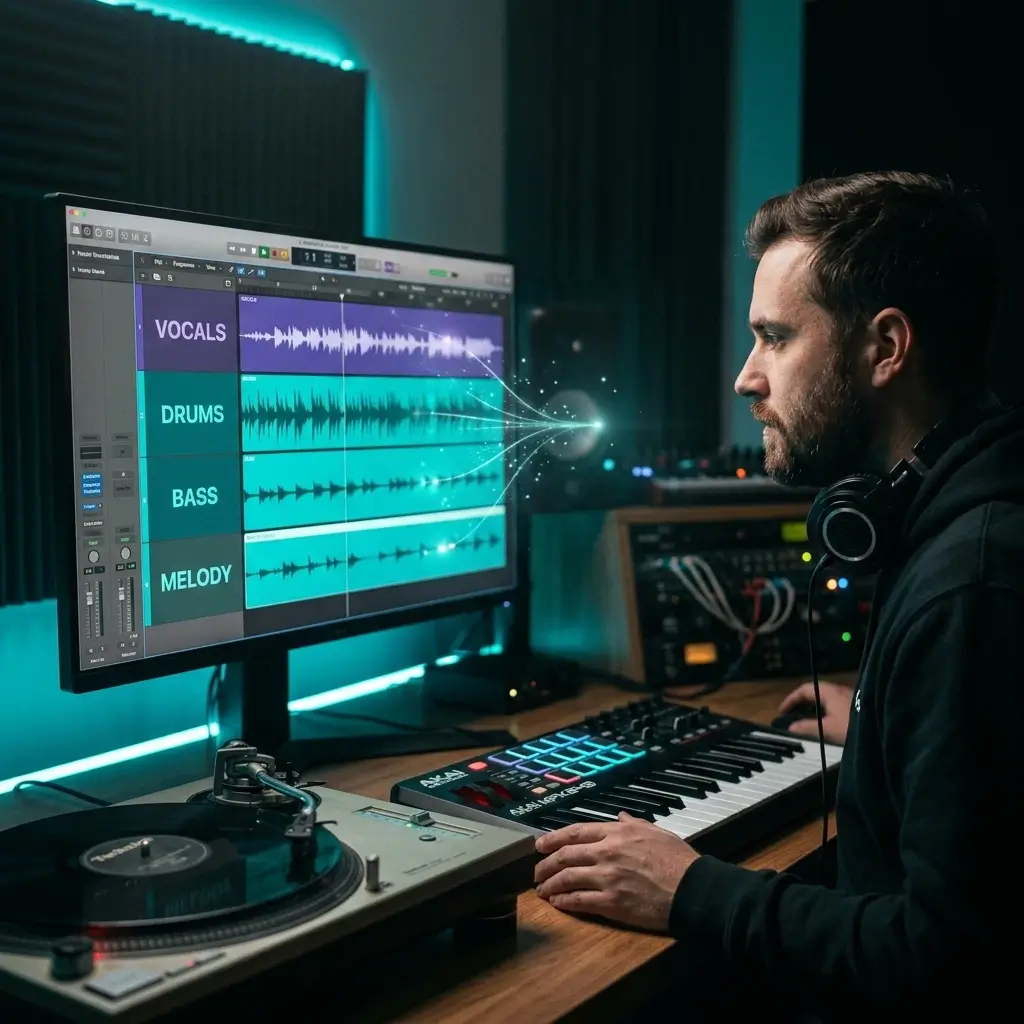


Vocal and Instrumental in One Run
2 tracks
The default Vocal Remover mode separates one source song into an isolated vocal track and an instrumental track. Processing time varies with the file and current service load.
Upload an MP3 or WAV and separate the song into vocal and instrumental tracks. Preview both results in your browser, then export MP3 or WAV with an eligible subscription. Start with free generation credits; no software installation is required.
Nothing here yet
Generate from the left. Finished tracks show up here.
Separate a song into vocal and instrumental tracks in three steps. Use source audio that you own or have permission to process.
Choose an MP3 or WAV file up to 50 MB, or select an eligible song from My Library. Confirm that you have the necessary rights before uploading.
Keep Vocal Remover mode selected and start the separation. The default workflow costs 20 credits and returns two tracks: the isolated vocal and the instrumental.
Listen to each separated track in the browser before exporting. MP3 and WAV downloads require a subscription, and permitted use still depends on your plan and rights to the source song.
Use the separated instrumental for karaoke and practice, or keep the vocal track for permitted remix and production workflows.

Remove the lead vocal to prepare a backing track for singing practice or permitted karaoke use. Separation quality varies by mix, so preview the instrumental before your session.

The default two-track result includes an isolated vocal you can bring into a DAW for an authorized remix, mashup, or production experiment.

Vocal coaches and students can practice over the separated instrumental instead of searching for a pre-made backing track. Use songs you own or are allowed to process.

Extract the instrumental when a permitted source song needs to sit beneath narration or dialogue. Publishing and monetization still require the necessary rights to the source music.

If you need more than vocal and instrumental, switch to Stem Separation and preview the available parts. Sample or rearrange them only when your rights to the source allow it.

Use the available separated stems to study an arrangement or practice an instrument against the rest of the mix. The exact stem set depends on the separation result.
The browser workflow combines source upload, two-track separation, in-browser preview, and audio export without desktop software.
2 tracks
The default Vocal Remover mode separates one source song into an isolated vocal track and an instrumental track. Processing time varies with the file and current service load.
Play the vocal and instrumental separately in the workspace, compare them with the original track, and decide which result you want to keep.
If two tracks are not enough, switch to Stem Separation mode for a more detailed split. The available stems depend on the source and separation result.
Eligible subscribers can download separated tracks as MP3 or request WAV output. WAV conversion may use additional credits when a direct source clip is unavailable.
Real feedback from cover artists, producers, and vocal coaches who use the vocal separation tool every week.
I upload a song, grab the instrumental, and record my cover — all in under 5 minutes. These karaoke tracks sound way better than the ones I used to pay $5 each for.

Sarah Chen
Cover Artist
The stem separation is clean enough for real remix work. I pull the acapella, pitch it, drop it into Ableton. Saves me hours of trying to EQ vocals out manually.

Marcus Rodriguez
Music Producer
I make backing tracks from my students' favorite songs so they can practice along. I do 10 to 15 tracks a week and the quality has been solid every time.

Emily Watson
Vocal Coach
I pull drums and bass from old funk records for sampling. The 4-stem split gives me exactly the layers I need for my live sets.

David Kim
DJ & Remixer
Had a gig in 2 hours and needed a backing track fast. Uploaded the song, downloaded the instrumental, done. No watermark, no hassle.

Lisa Thompson
Singer-Songwriter
I grab instrumentals for YouTube intros and podcast transitions. It's fast, and the 320 kbps quality holds up even after I compress for upload.

Alex Martinez
Content Creator
Answers about removing vocals from songs, input files, separated tracks, credits, downloads, copyright, and related audio tools.
Yes. Sign up to receive free starter credits with no credit card required. A standard two-track separation uses 20 credits, so free use is limited by your available balance. MP3 and WAV downloads require an eligible subscription.
Choose Upload, add an MP3 or WAV file, keep Vocal Remover mode selected, and start the separation with your free credits. When processing finishes, preview the isolated vocal and instrumental tracks in the browser.
Vocal Remover mode produces two separate results from the source song: a vocal track and an instrumental track. Download the instrumental when you want music without the lead vocal, or keep the vocal for an authorized production workflow.
Results depend on the mix. Clear, centered vocals are usually easier to separate, while dense arrangements, heavy reverb, backing harmonies, and overlapping frequencies can leave artifacts or vocal bleed. Preview both tracks before downloading.
The current upload control accepts MP3 and WAV files up to 50 MB. You can also select an eligible song from My Library after signing in.
AI source separation analyzes the mixed recording and estimates which audio belongs to the voice and which belongs to the accompaniment. BeMusic returns those estimates as separate vocal and instrumental tracks; separation quality varies with the source mix.
Yes. Download the instrumental track as a backing track when you have the necessary rights to the song. If karaoke is your main goal, use the dedicated Karaoke Maker workflow.
Vocal removal is a focused two-track split: vocal and instrumental. Stem separation breaks the recording into more individual parts for production and practice. Use the Stem Splitter when you need drums, bass, guitar, piano, or other available stems instead of one combined instrumental.
Yes. The standard separation returns both, so you can preview or export the vocal track. If the isolated voice is the main asset you need, the Vocal Extractor explains that workflow in more detail.
You can preview the original, vocal, and instrumental tracks in the browser. MP3 and WAV downloads require an eligible subscription; WAV conversion may use additional credits when the result does not have a direct clip ID.
Processing time varies with the audio file and current service load. The workspace shows progress while separation is running; a task that does not finish within the processing window will time out so you can try again.
While Pro or Studio is active, you can obtain a commercial-use license for eligible separated output in your account, including output made before upgrading. Free and Creator output remains for personal, non-commercial use unless later licensed. You must also have all necessary rights to the source recording and composition; review the Commercial License Agreement before publishing.
That depends on the song, your rights, the intended use, and local law. BeMusic's license does not clear third-party recordings or compositions. Use audio you own or are authorized to process, and obtain any permissions required before publishing, monetizing, distributing, or performing the result.
A vocal remover separates an existing recording into vocal and instrumental tracks without creating a new performance. An AI Cover Generator creates a voice or style transformation around source audio. If you want a new original track instead, use the AI Music Generator.
No. The vocal remover runs in a modern desktop or mobile browser. Sign in, upload or select a song, preview the separated tracks, and access available downloads from the same workspace.
Uploaded audio is processed to provide the separation service. Review the current Privacy Policy for retention and data-handling details, and do not upload recordings you are not authorized to use.
Have more questions? Contact our team — we're happy to help.
Discover other powerful features to enhance your music creation
Sign up for free starter credits, upload an MP3 or WAV, and separate the vocal from the instrumental in your browser. No credit card or software installation is required to start.