MiniMax Music 3.0 for New Song Ideas
Choose 3.0 when you want to try the newest model available here. Use it for full songs with rich vocals, clear changes, and a longer structure.

Play the samples and hear how each model handles vocals, song structure, instruments, and pace. Then use what you hear in your own prompt.
Turn your idea into a track without setting up an endpoint or API key. Pick the model that fits your song.
Not sure which version to use? Start with one, then try the same prompt with another model before you settle on a sound.
Tell the model the genre, mood, BPM, instruments, voice, and song structure you want. Add your own lyrics to guide each verse and chorus.
Click Generate and BeMusic AI sends your request to the MiniMax model you chose. Play the track, download it, or change your prompt and try again.
You may have a mood, a few lines, or a full set of lyrics. Start with what you have and turn it into a song, instrumental, or soundtrack.
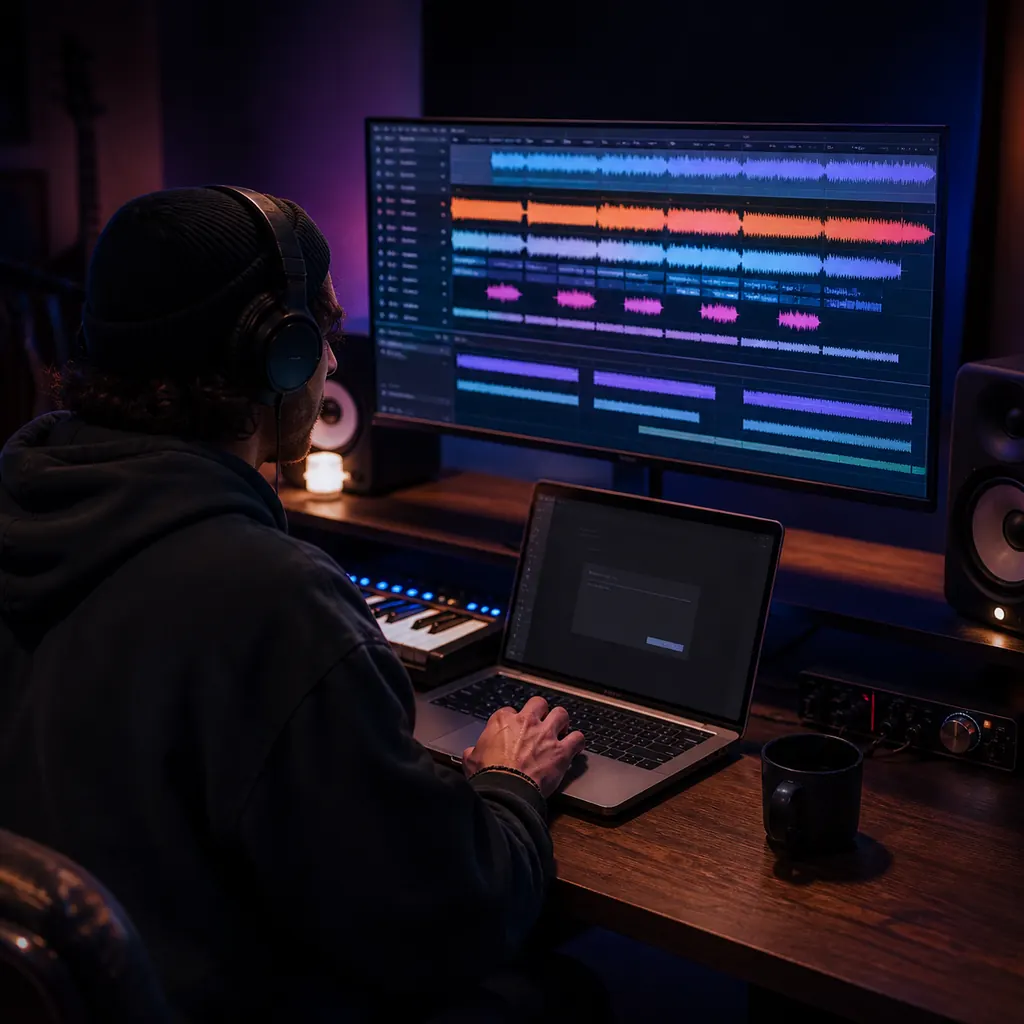
You know the mood, but you cannot hear the full arrangement yet. Describe it in plain words, and let your chosen model add the voice, instruments, structure, and mix.
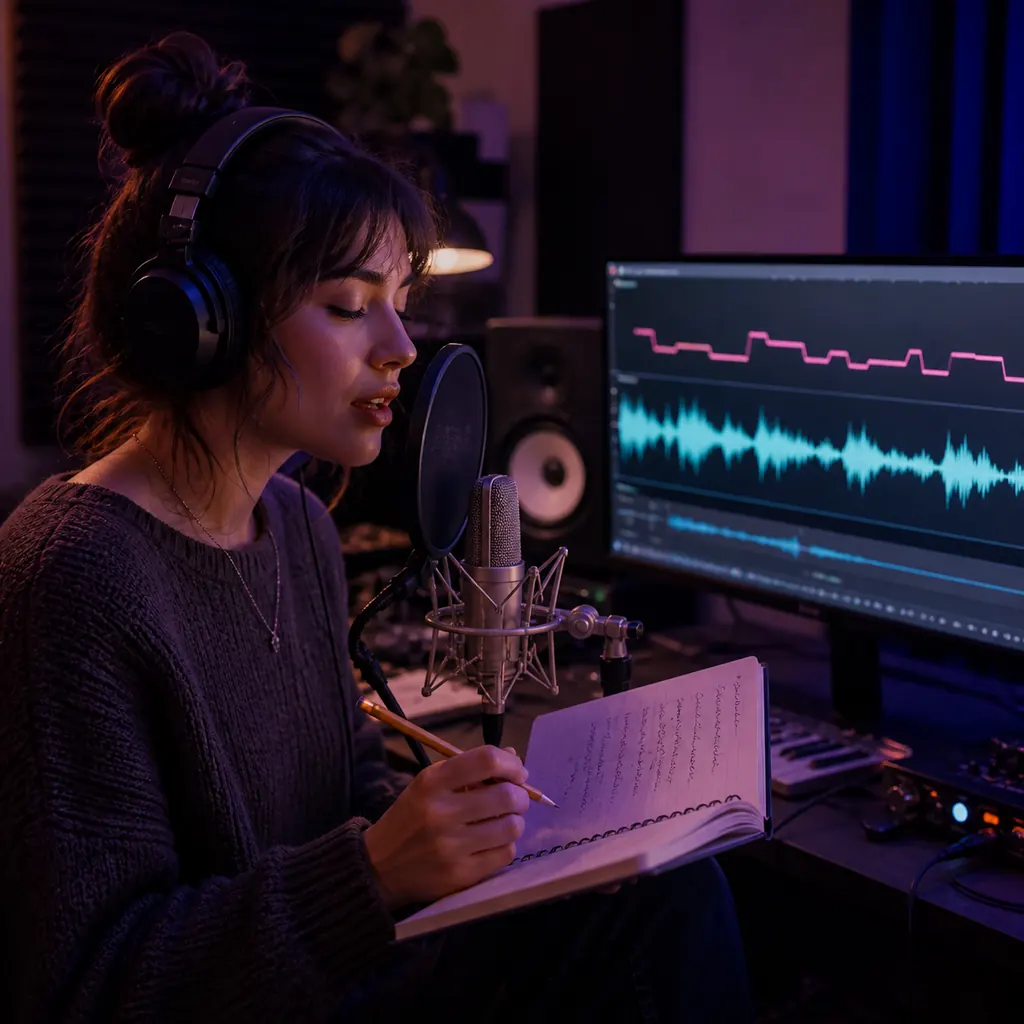
Your lyrics still need a melody and a voice. Mark the verses, choruses, and bridge, then describe how you want the song to sound.
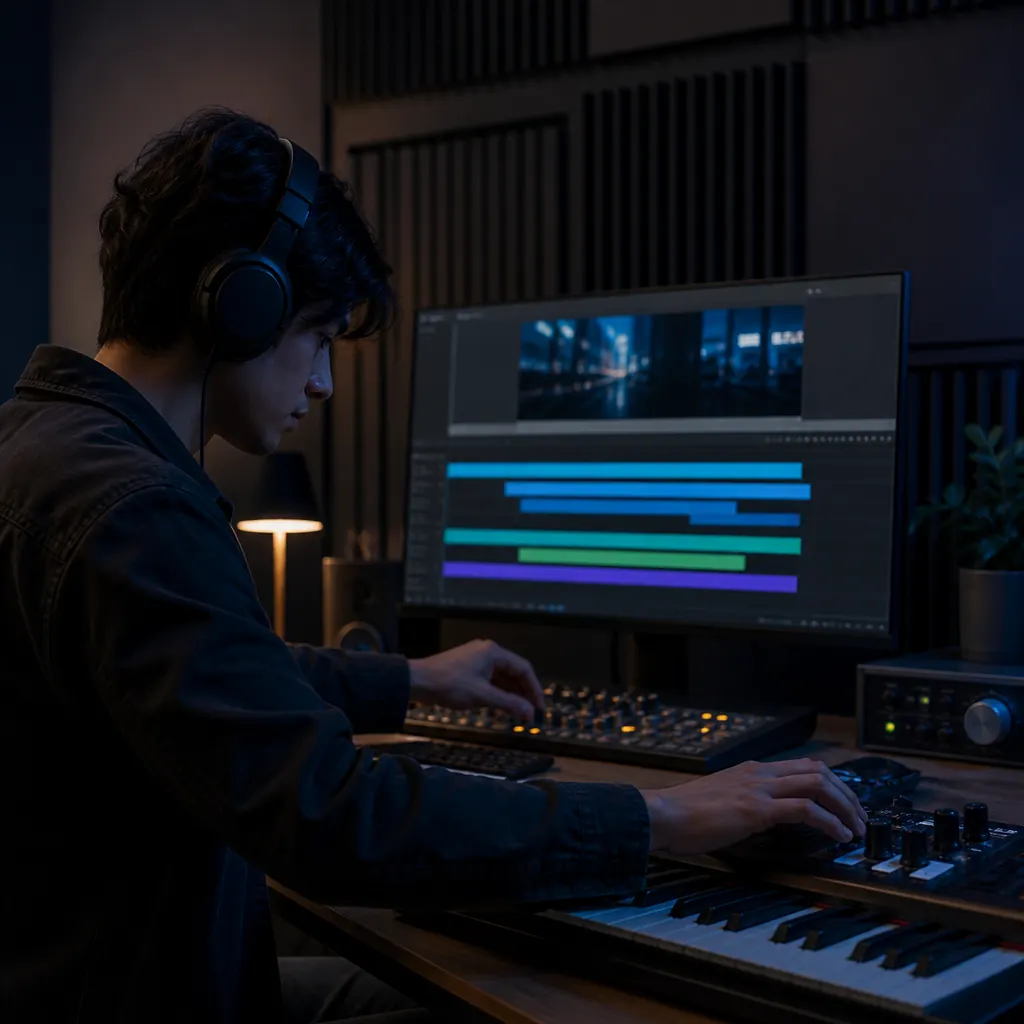
Your video, podcast, or game may need room for speech. Ask for an instrumental, then set the BPM, instruments, mood, build, and ending.
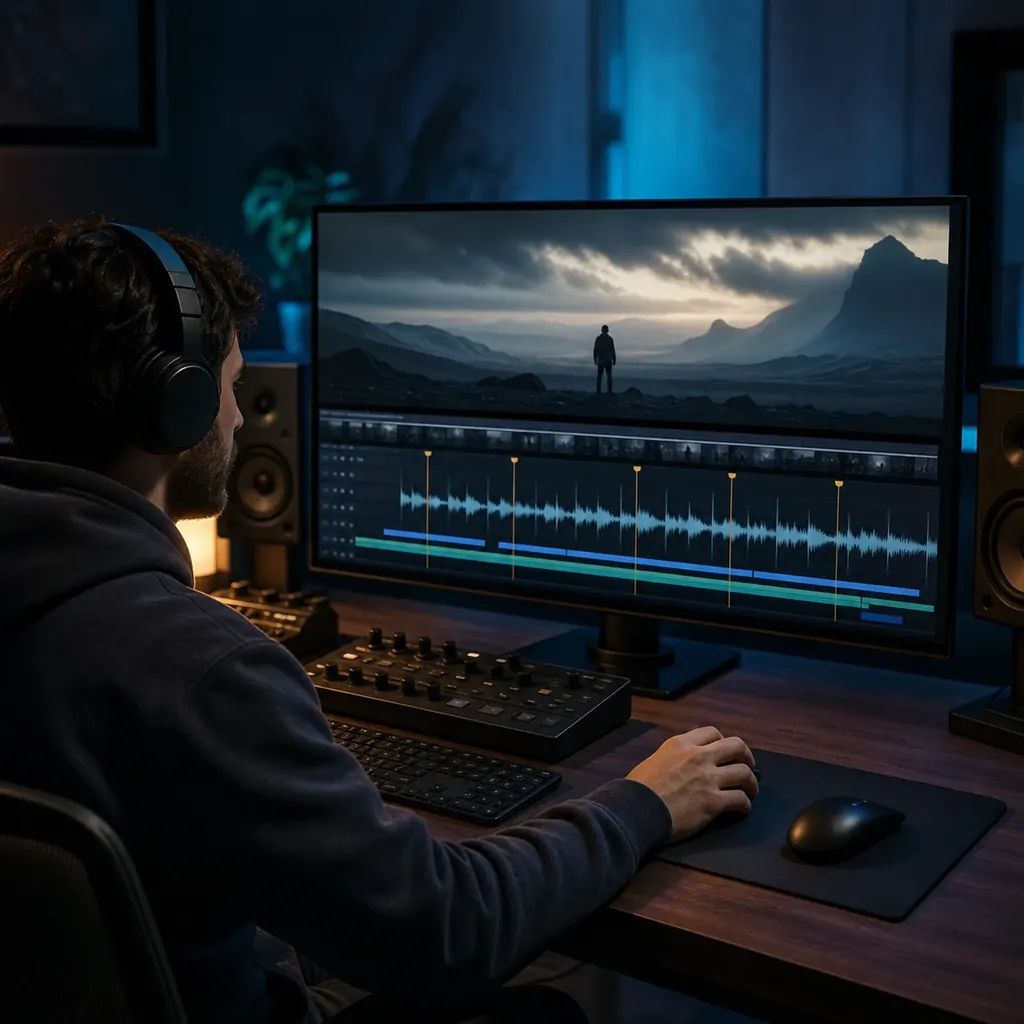
A stock track may miss the pace or turning point in your scene. Describe the scene, length, energy, and ending so the music fits your edit.
Want the song to speak to listeners in their own language? Add lyrics you wrote or can use, then describe the voice, genre, and singing style.
The first result may not be the sound in your head. Try the same prompt with 2.5, 2.6, and 3.0, then compare the voices, arrangements, and song structure.
A newer model is not always the right one for your song. Compare the sound, credit cost, and fit before you choose.
Choose 3.0 when you want to try the newest model available here. Use it for full songs with rich vocals, clear changes, and a longer structure.
Start with 2.6 if you already know its sound or want another take on your prompt. Add vocals, lyrics, and clear notes about the sound you want.
Already have prompts that work well with 2.5? Keep using them here, or run them again with a newer model to hear what changed.
You do not need to set up three endpoints or rewrite your code. Choose a model in BeMusic AI, and we handle the API request.
No one likes a surprise charge. You see the BeMusic AI credit cost for your model and settings before you create the track.
A short clip may end before your song gets going. Pick a length that gives each verse, chorus, bridge, and outro enough room.
Help the model see where each part belongs. Add tags such as [Verse], [Chorus], [Bridge], and [Outro] to your lyrics.
BeMusic AI is not owned or run by MiniMax. We are an independent service that gives you access to the supported MiniMax APIs.
Find out which model to choose, what to enter, what a track costs, and how BeMusic AI connects to MiniMax.
It turns a song idea and optional lyrics into a full track. Your track can include vocals, instruments, and sections such as verses and choruses.
Yes. BeMusic AI sends your prompt, lyrics, and settings to the MiniMax model you chose. The finished track comes back to your workspace.
You can choose Music 2.5, Music 2.6, or Music 3.0. We use that model when you create the track.
Each version may handle the voice, song structure, and mix in its own way. Music 3.0 is the newest, but you can still use 2.5 and 2.6.
Yes. Pick 2.5, 2.6, or 3.0 before you create the track. You can then use the same prompt with another model and compare the songs.
No. You do not need to create or enter an API key. BeMusic AI takes care of the connection for you.
No. BeMusic AI is an independent service and is not owned or run by MiniMax. We connect this page to the MiniMax APIs we support.
Yes. Ask for an intro, verses, choruses, a bridge, breaks, and an outro. The model puts each part into one track.
Yes. Add lyrics you wrote or have the right to use. Tags such as [Verse], [Chorus], and [Bridge] help the model shape the song.
Yes. Ask for an instrumental with no singing or speech. You can still set the BPM, instruments, mood, structure, and sound.
Name the genre, mood, tempo, instruments, and type of voice you want. Clear details such as warm piano or soft male vocal work better than words like good or catchy.
A track can run for up to 5 minutes when the model and settings support it. Pick a shorter length for an intro, loop, or quick cue.
The cost depends on the model and settings you choose. You see the full BeMusic AI credit cost before you create the track.
Yes. Keep the same prompt and lyrics, then create one track with each model. You will hear the changes in the voice, mix, and song structure.
The generator shows the formats you can choose. When your track is ready, you can play it and download the audio file.
It depends on your BeMusic AI plan, the model terms, and the content you add. Read the commercial license before you publish or sell a track.
Say what genre, mood, BPM, instruments, voice, song shape, and use you want. Describe the sound itself instead of naming a protected artist or song.
Discover other powerful features to enhance your music creation
Choose 2.5, 2.6, or 3.0 and start with the idea in your head. Add a prompt or lyrics, check the cost, and hear your track.