Fast, Server-Side Separation
< 10 sec
Separation runs on our servers, so your device doesn't do the heavy work. The time depends on the file length, the mode and the queue.

These examples show what the splitter produces on different kinds of tracks. Hit play and judge the quality yourself.
No software to install, no mixing knowledge needed. Upload, split, preview, download. The time depends on the file length and the queue.
Upload an MP3 or WAV up to 50 MB. Files may be retained for up to 30 days after processing, or until you delete them earlier.
Vocal Splitter mode gives you a vocal track and an instrumental. Stem Separation mode returns more separate stems, such as vocals, drums, bass and other instruments. The exact set depends on the track.
Preview the stems in your browser. Downloading MP3 or WAV needs a paid plan or credit pack, and no audio watermark is added. You still need the rights to the original song to use the stems.
The most popular use case is pulling individual parts out of a finished mix. Here's how different creators put those stems to work.
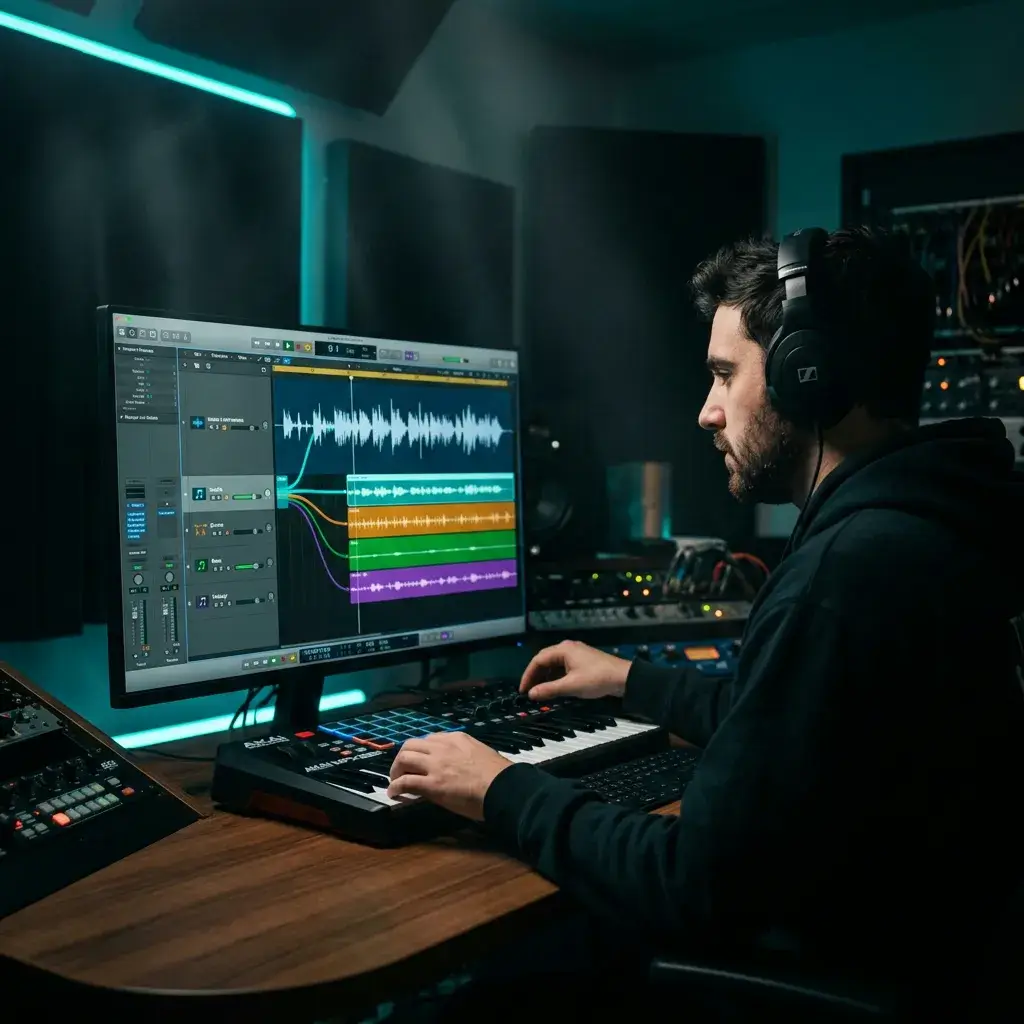
Grab a clean acapella from any track and build a new beat around it. Producers use this for official remixes, mashups, and sample-flipping sessions in Ableton or FL Studio.

Find a groove you love? Split the song and grab just the drums or bass as a separate file. Loop it, chop it, or layer it under your own production.

Learning guitar? If the split returns a stem for your instrument, mute it and play along with the rest. The same idea works for piano, drums, or any other instrument you're working on.

Split the vocal out and you have a karaoke-style version. Check the quality on your own track before you use it at a live event.

Need a melody track without vocals competing with your voiceover? Split the song and grab just the instrumental — or just the melody stem for something more subtle.
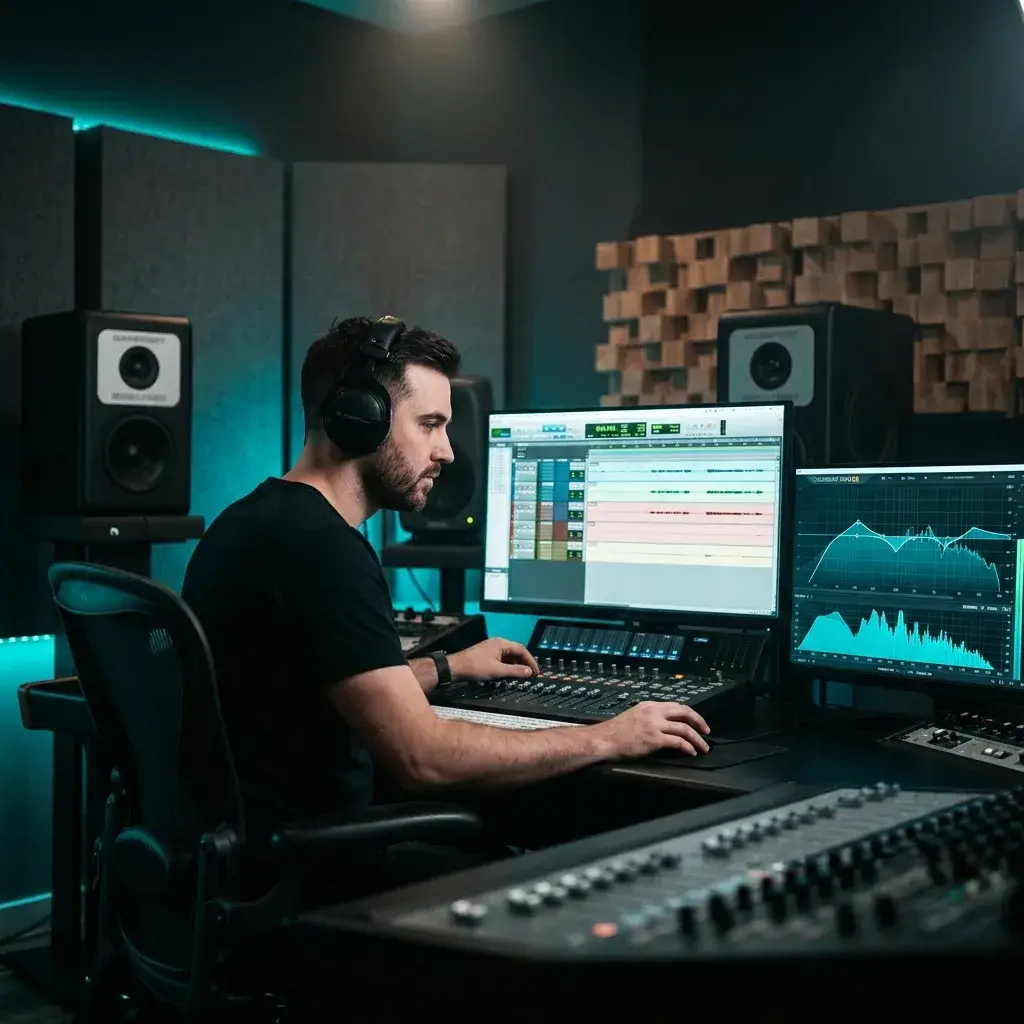
Want to hear how a professional track is put together? Split it into stems and solo each part — hear the bass line by itself, the drum pattern, the vocal production choices.
Here is what the Vocal Splitter does and how it is priced.
< 10 sec
Separation runs on our servers, so your device doesn't do the heavy work. The time depends on the file length, the mode and the queue.
Download MP3 or WAV. Both need a paid plan or credit pack. Starting from a WAV gives the separation the best possible input.
Run a song once for a vocal track and an instrumental, or switch to Stem Separation for more stems. Choose the mode before you run it; each has its own credit cost.
No audio watermark is added to the preview or to the downloaded file. Downloading needs a paid plan or credit pack.
Common questions about splitting songs into stems, audio quality, and how credits work.
Each run uses credits. New accounts may get free starter credits, and no credit card is needed to sign up. After that you can buy credits or choose a paid plan.
Two modes. Vocal Splitter mode gives you 2 files: the voice and the instrumental. Stem Separation mode gives you more separate stems, such as vocals, drums, bass and other instruments. The exact set depends on the track and the model.
It depends on the file length, the mode and the current queue. Separation runs on our servers.
Files may be retained for up to 30 days after processing, or until you delete them earlier. They are shared only with providers needed for the requested processing and are not used to train shared AI models without your explicit opt-in.
MP3 or WAV, up to 50 MB. For the cleanest separation, upload a WAV when possible.
On well-recorded tracks with clear arrangement, stems come out with minimal bleed. Dense mixes with heavy reverb or layered harmonies are trickier — you might hear faint traces of other instruments, but for production, practice, and content work the quality holds up.
Yes. Run Stem Separation mode and download only the stem you need. Which stems you get depends on the track and the model.
MP3 or WAV. Both downloads need a paid plan or credit pack, and WAV for some files may use extra credits. A WAV made from a lossy source doesn't recover lost detail.
No. No audio watermark is added, and the downloaded file matches what you hear in the player preview. Downloading needs a paid plan or credit pack.
Free and Creator stems are for personal, non-commercial projects. Pro and Studio include a commercial-use license for eligible output, but you still need all rights required for the original song before releasing or monetizing it.
The AI Vocal Remover is optimized for one job: stripping the voice to get a clean instrumental. This Vocal Splitter page is built for people who want multiple stems — drums, bass, melody — not just an instrumental. Same AI engine, different focus.
The Stem Splitter opens in full stem mode by default. Use it when you want more separate instruments rather than just vocals and an instrumental.
Not directly from a URL. Download the audio from the video first (as MP3 or WAV), then upload it here. The tool accepts audio files only.
It works in modern mobile browsers. Upload, split, and download from your phone without an app. The processing itself happens on our servers.
Yes. Sign up with your email and confirm it. New accounts may get free starter credits, and no payment info is required to sign up.
Absolutely. Run either mode and download the vocal file. That gives you an isolated acapella, useful for remixes, vocal sampling, or a cappella arrangements.
When instruments share the same frequency range as the voice (like backing vocals or strings), the AI has to make judgment calls about what belongs where. Cleaner recordings with distinct parts separate better. Heavy reverb and dense layering make it harder.
We haven't run a controlled comparison, so we don't make speed claims. What we can say: no audio watermark is added, credits are charged per run and shown before you start, and you can preview the stems before you download. Try your own track and compare.
For personal use — learning, practice, home karaoke — generally yes. For commercial use (releasing remixes, monetizing videos, client work), you need a proper license for the original song regardless of what tool you use to separate it.
Trim it down or compress it before uploading. A 4-minute MP3 at 320kbps is usually around 9 MB. WAV files are larger: a 4-minute stereo WAV is around 40 MB.
Still have questions? Drop us a line — we're happy to help.
Discover other powerful features to enhance your music creation
Upload a track and get your stems back. Sign in to run it; new accounts may get free starter credits. No audio watermark is added.